B/K SPLIT COMBINE MANAGER


SHMBKGSPLCOMBMGT
B/K SPLIT COMBINE MANAGER
Features
In this menu, you can split & combine BOOKING & B/L.
Even the M/F has closed or Sales settled, you can still split BOOKING & B/L.
In case of Booking Combine, only the BOOKING(B/L) which have same customer and same B/L type (SUR, SWB, ...) will be combined.
You can combine BOOKING(B/L) even the M/F has closed or Sales Closed as well.
Menu
Menu location
Shipping Management --> Booking Management --> B/K SPLIT COMBINE MANAGER

[Tabs] - Split, Combine, Split & Combine Log
Searching Booking in order to Split/Combine
Split : At Split tab, search booking list at Search Panel and then click [Apply] button.
Combine : At Combine tab, search booking list at Search Panel and then click [Apply] button or input VSL/VOY/POL/POD/(CUST) and then click [Search] button.
Buttons
Item |
Comment |
Type |
|
Search |
search data of Splitting, Combining and Logs. |
button |
|
Clear |
clear screen. |
button |
|
Save |
Save data. |
button |
Splitting
Item |
Comment |
Type |
|
Log |
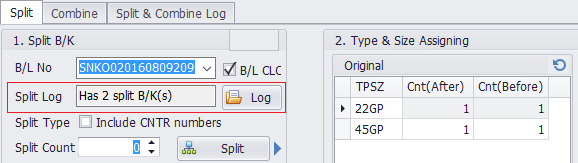
If B/K was splitted, 'Split & Combine Log' tab will be opened if you click [Log]. |
button |
|
Split |
New Booking number(s) will be generated automatically. |
button |
|
Move one |
Selected TPSZ on original Booking will be moved to new (splitted) Booking. |
button |
|
Move |
Selected Container(s) on original B/L will be moved to new (splitted) B/L. If you click "Move" button, Container details will be moved to the New B/L and the container details will be removed from the orginal B/L. |
button |
|
Copy |
Selected Container(s) on original B/L will be copied to new (splitted) B/L. If you click "Copy" button, Container details from Original B/L will be copied to splitted(new) B/L and the containers will not be counted. (CNT column = N) |
button |
|
B/L CLCOSING |
check B/L was closed or not. |
check box |
|
Split Log |
It shows total splitted Booking count. If you click [Log] button, Splitted booking details will be shown on 'Split & Combine Log' tab page.
|
||
Split Type [] Include CNTR numbers |
Split option whether you'll include container number list of the B/L or not. |
check box |
|
Split Count |
Total split count of Booking. Additional count of inputted number will be generated. |
||
Web Split Request Information |
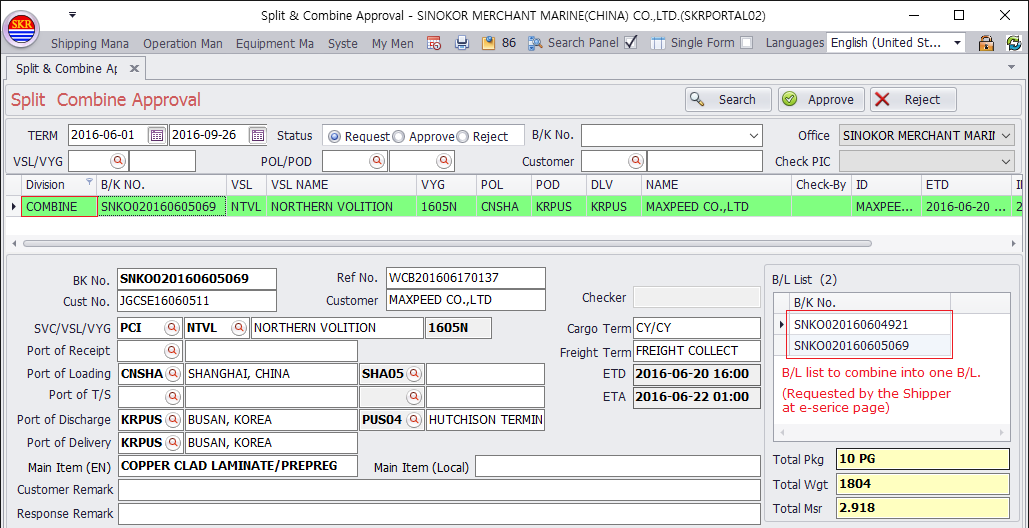
1. Combining Request by Customers In China, Customers can request combining at E-SERVICE. 2. Approval by the e-Booking P.I.C The P.I.C can confirm/reject combining req by clicking [Approval] or [Reject] button at Split & Combine Approval menu under Shipping Management >> E-SERVICE Management. Click [Approval] -> B/K SPLIT COMBINE MANAGEMENT menu is opened. 3. Complete Combining. In the Combine tab at B/K Split Combine Manager, set Master B/L and click [Save] button. |
||
Request |
Request User |
||
Message |
Customer's Combining Req Message. |
||
Reference |
(invalid) |
||
B/L |
(invalid) |
||
Cust |
(invalid) |
||
Shipper |
(invalid) |
[Approval of Combining Request]
Combining
Item |
Comment |
Type |
|
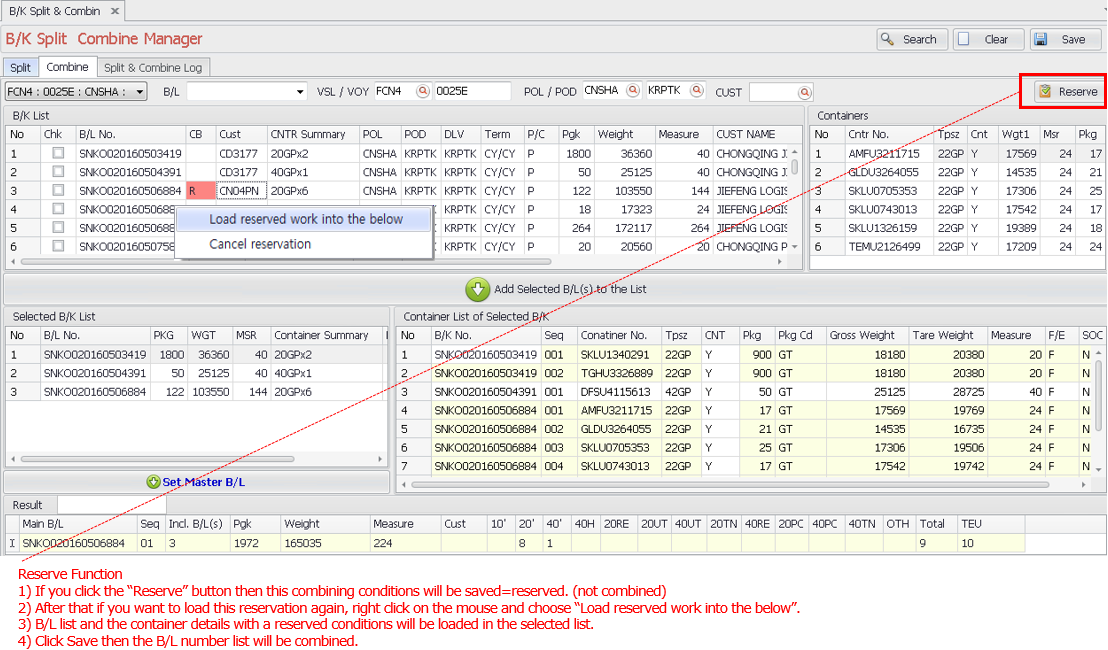
Reserve |
B/K Combining Reservation. If you want to combine some Booking list later, you can select Booking list in advance and make a reservation by clicking this button. You can click [Save] button finally if you want to combine selected Booking list later. |
button |
|
Add Selected B/L(s) to the List |
Add B/L list to combine. |
button |
|
Set Master B/L |
Set Master B/L from the selected B/L list. |
button |
|
combo box (vsl/voy/POL) |
VSL/VOY/POL list applied from Search Panel. |
||
B/L |
|||
VSL/VOY |
VSL/VOY options to search B/L list. |
||
POL/POD |
POL/POD options to search B/L list. |
||
CUST |
Customer options to search B/L list. |
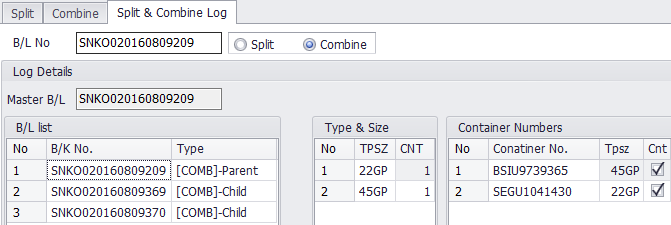
Split & Combine Log
Item |
Comment |
Type |
|
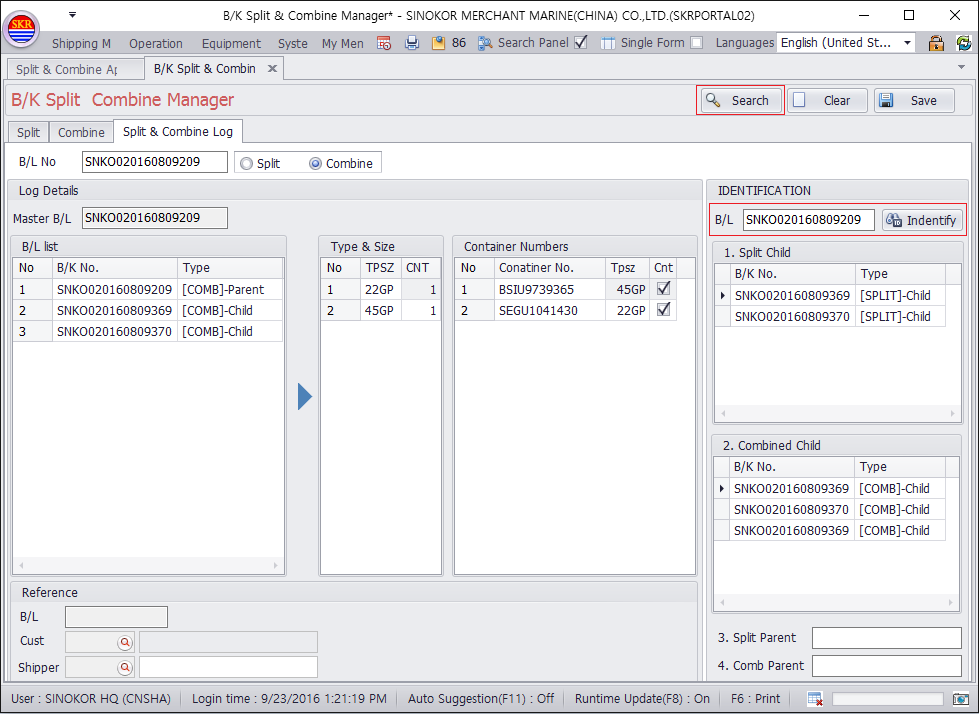
Log Details |
This shows split/combine details.
|
||
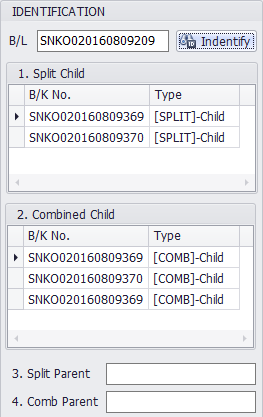
Identify |
This shows Booking numbers identification. Split-Parent/Child or Combine-Parent/Child.
|
button |
|
B/L No. |
B/L number for checking identity. |
||
Master B/L |
Master B/L. |
||
Reference |
(not in use) |
||
B/L |
(not in use) |
||
Cust |
(not in use) |
||
Shipper |
(not in use) |
How to Split BOOKING, B/L
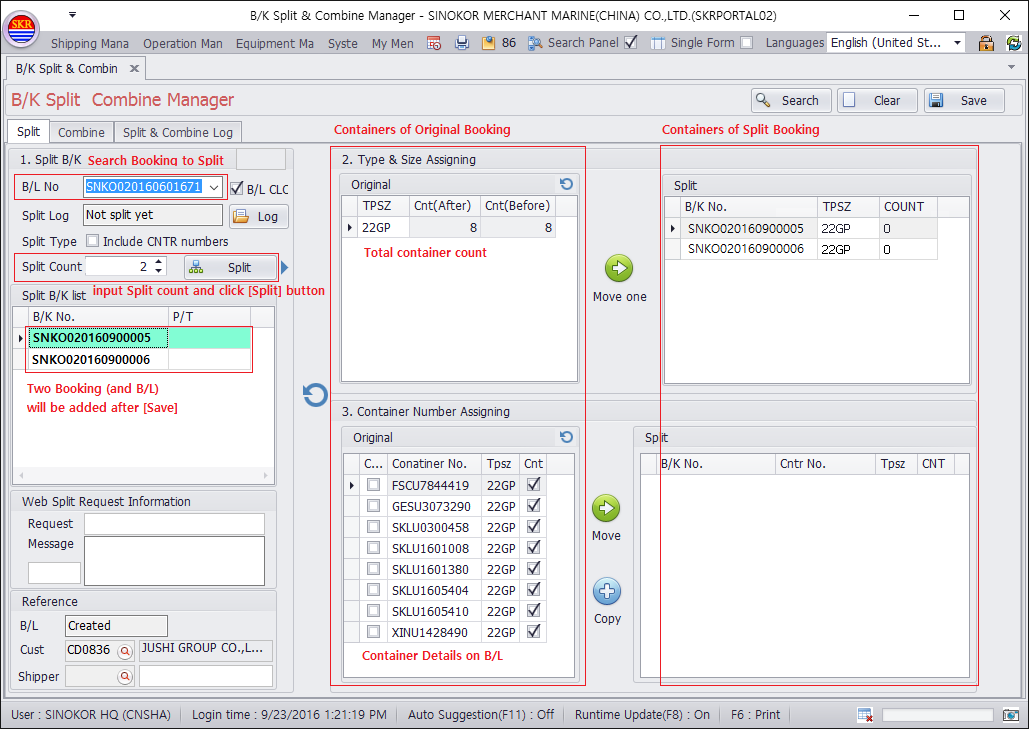
Step1)
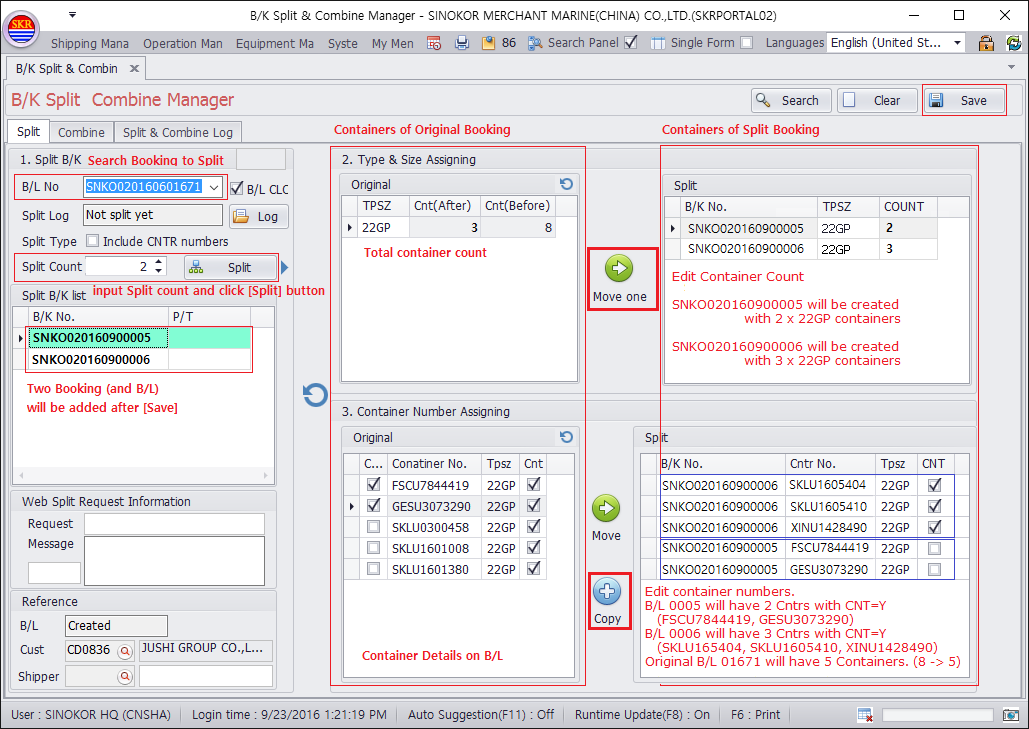
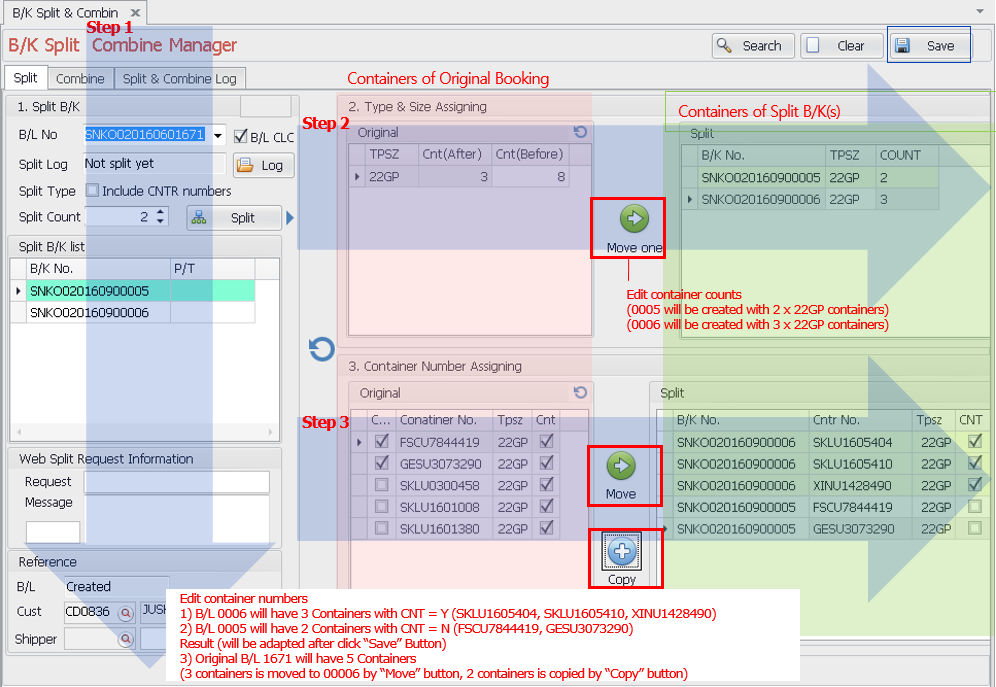
At the Split tab, search Booking at Search Panel and Apply. Or input Booking number and press Enter or click [Search] button.
Input Split Count and click [Split] button.
Then "New Booking Number" will be generated automaticaly.
Step2)
Edit Container total count for each Booking.
SNKO0201606000005 will be created with 22GP X 2EA.
SNKO0201606000006 will be created with 22GP X 3EA.
Step3)
SNKO0201606000005 : 22GP X 2EA (FSCU7844419, GESU3073290)
SNKO0201606000006 : 22GP X 3EA (SKLU1605404, SKLU1605410, XINU1428490)
How to Combine BOOKING, B/L
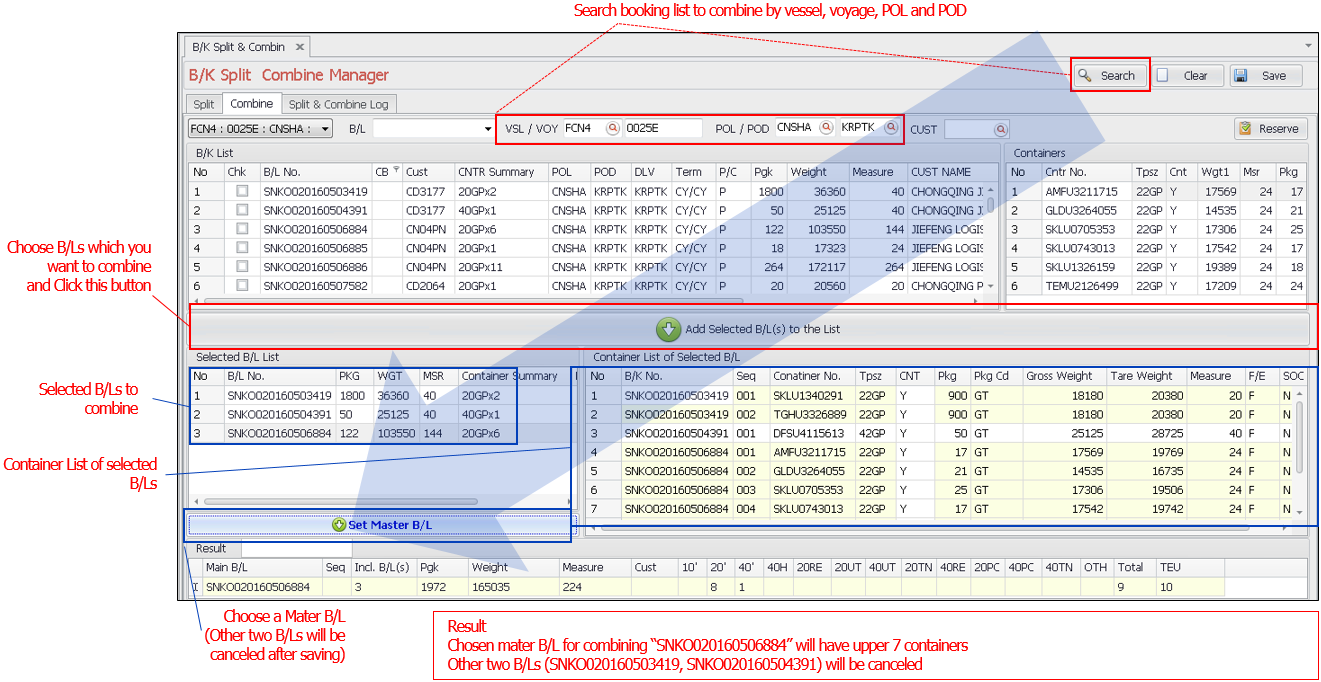
Search Booking List for Combining.
Select (tickup) Booking number and then click [Add selected B/L(s) to the list] button. Then the selected Booking number list and the Container details will be shown on the below data grid.
Choose one B/L Number to set as Master B/L number - click [Set Master B/L] button.
Click [Save] button.
Reserve function to combine Booking - How to reserve combining.
On the combine tab, if you click [Reserve] button then the combining conditions will be saved (reserved). In this step, Booking's are not combined.
If you load this reservation data again and right click on the mouse, click [Load reserved work into the below].
Then the B/L list and the container details with a reserved conditions will be loaded on the data grid of 'Selected B/K List' and 'Container List of Selected B/K'.
Click [Save] button then the B/L number list will be combined into master B/L number.
Split & Combine Log
Input B/L number and click [Search] button in order to inquire Split/Combine Logs.
Input B/L number and Click [Identify] button to check the identity of Booking.
Reference - not valid.
-end-