Inbound B/L Management


SHMBLIBMGT
Inbound B/L Management
Features
You can adjust Inbound B/L Data efficiently.
Exchange rate management for invoices of Inbound B/L(s).
You can assign customers to specified B/L(s) for issuing Invoice by vessel/voyage.
You can apply customer tariff for collect chrages.
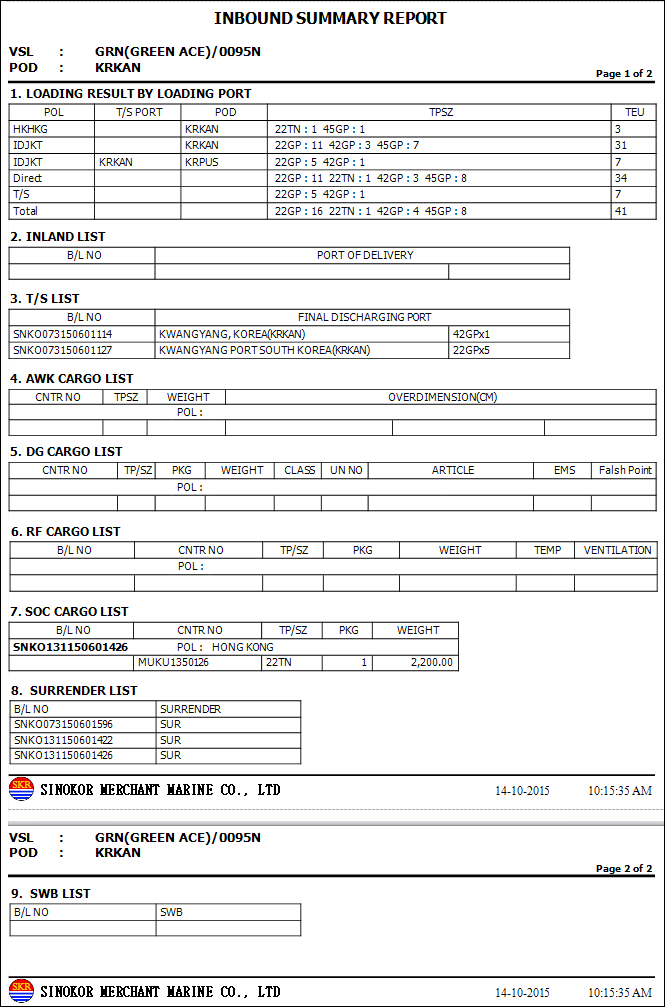
* Can print out [Inbound Summary] report
Menu
Menu location : Shipping Management --> Inbound Management
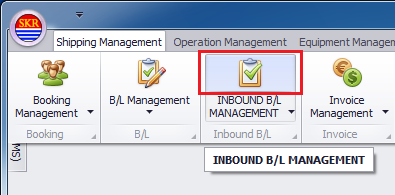
How to search inbouond data
Search inbound data at Search Panel and then click [Apply] button.
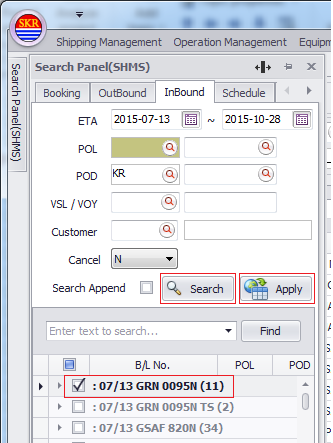
Searching Conditions
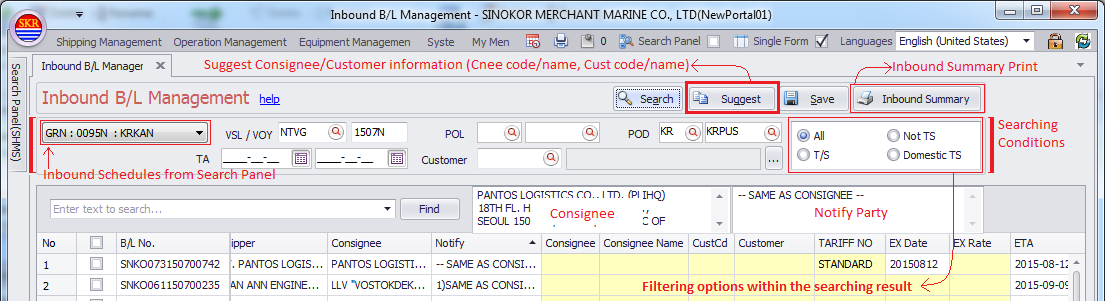
To search data, you can use Search Panel or Enter Searching Conditions and click [Search] button.
Vessel/Voyage/Port combo box - This comes from Search Panel. Choose data then data will be shown on the grid.
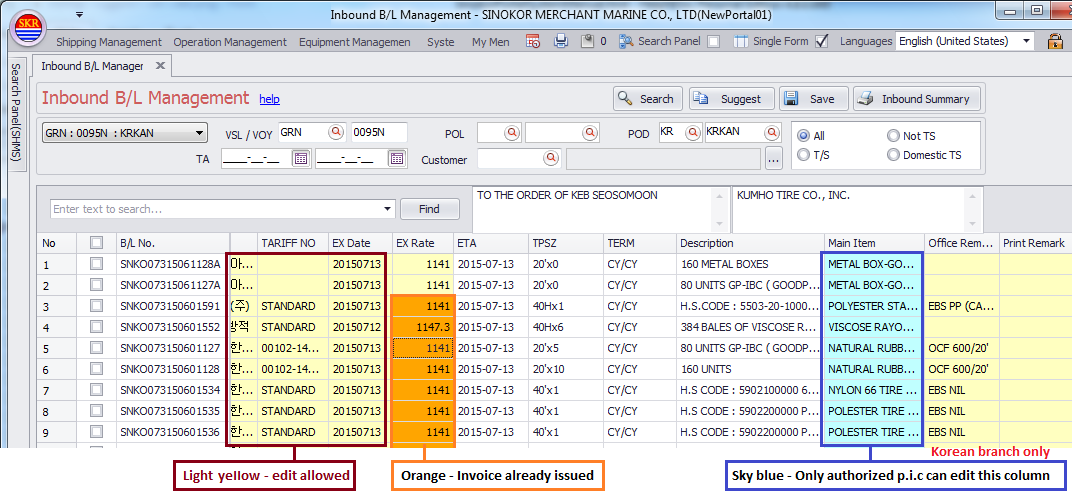
Grid Colors
Light yellow - You can edit all columns with light yellow.
Orange - Orange means that Invoice has already issued.
Sky blue - Columns with sky blue can be edited only by authorized p.i.c.
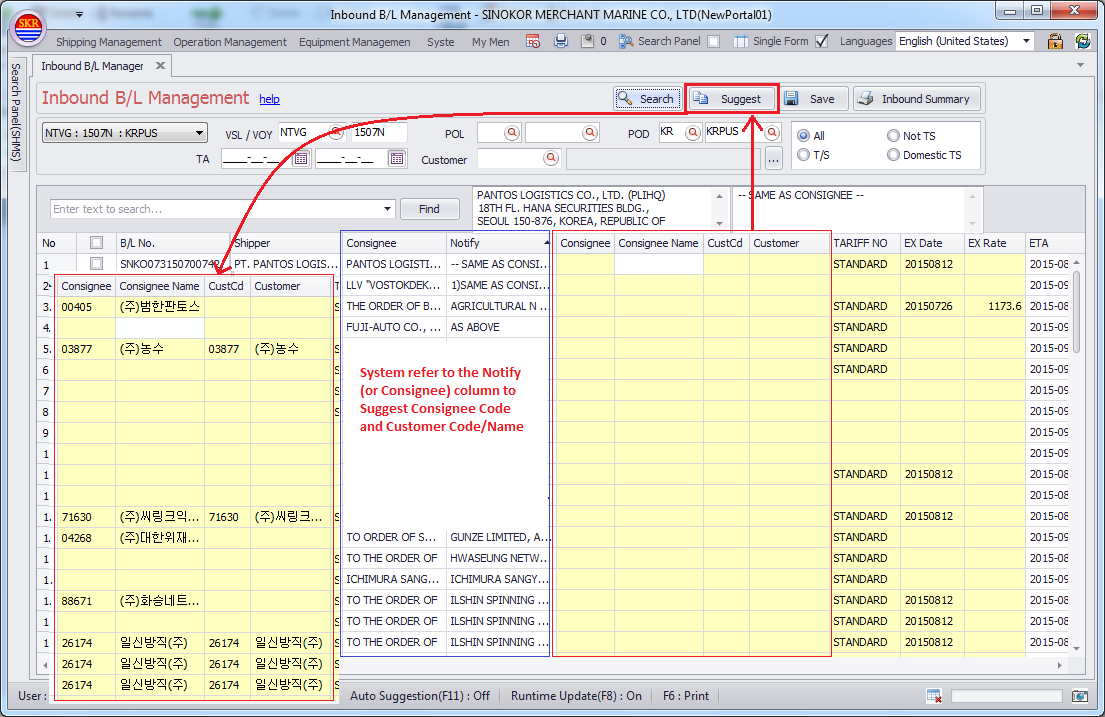
[Suggest] button - How to fill out Consignee/Customer information and Tariff Number.
In case that there're no Consignee code/name, Customer code/name (inbound customer) and Tariff Number, click [Suggest] buttton.
If you click [Suggest] button, system suggests appropriate customer to each B/L(s).
(System refers to the data recently inputted for three months)
Then system will fill out those columns with the data that used recently (the latest cnee code/name and customer code/name which was used recently (3 months))
If Consignee/Customer information is missing after clicking [Suggest] button, find cnee/cust code and save by manual.
(To input inbound customer code, you should register customer information to portal system first.)
* cnee(hhc1), ntfy(hhn1)
* custcd(ag_incust)
* EX Rate (locexrt)
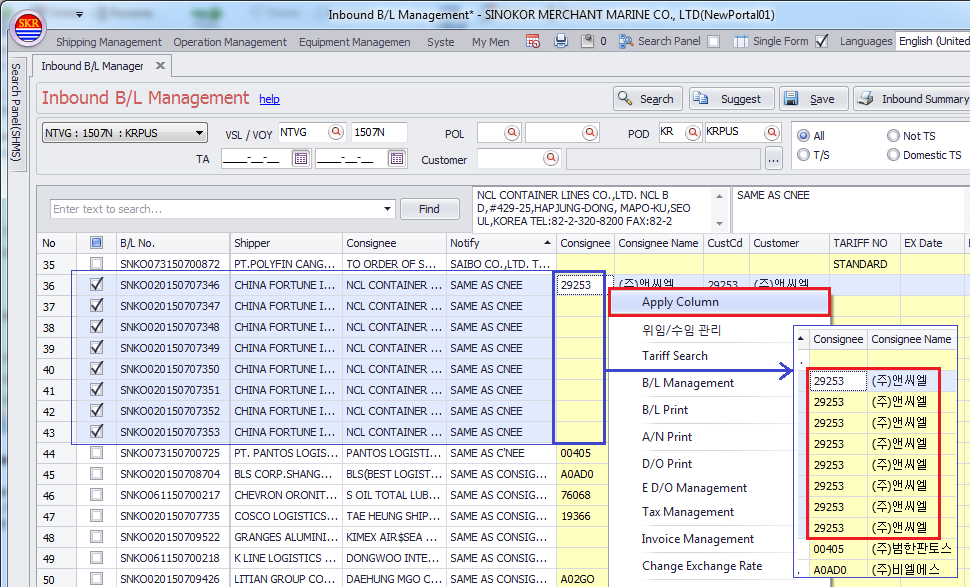
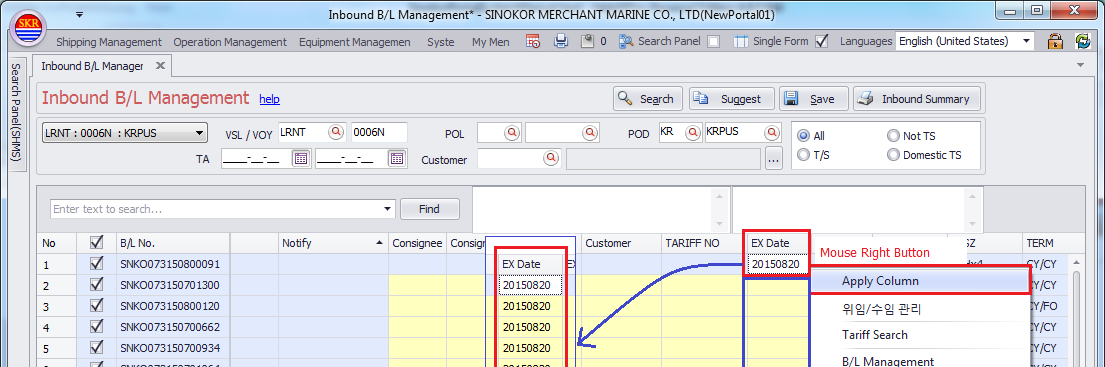
[Apply Column] pop-up menu
This function is to apply same data to specified column for selected rows.
To do this, tickup rows you want to apply and then click right button on the mouse at a cell, choose "Apply Column".
Then the columns of selected rows will be filled with automatically.
You can use this function to CustCd, TARIFF NO, Ex Date and Ex Rate column.
caution) to apply same tariff to 'TARIFF NO' column, customers of selected rows should be same.
Consignee Code / Consignee Name, CustCd / Customer Name
select rows and then click 'Apply Column' popup menu, then selected data will be applied to all the selected rows.
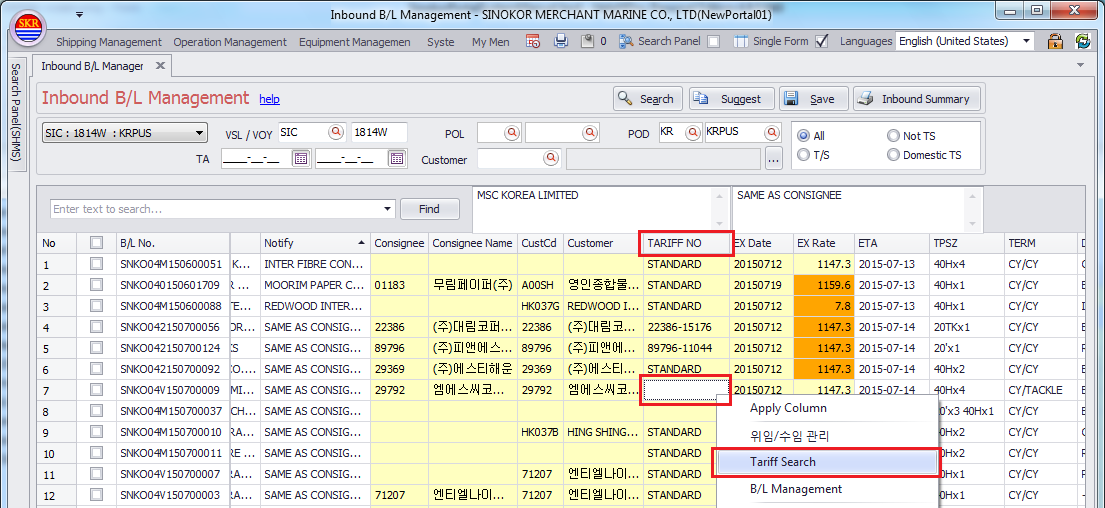
TARIFF NO Column
Search tariff on empty TARIFF NO column by click right button on the mouse.
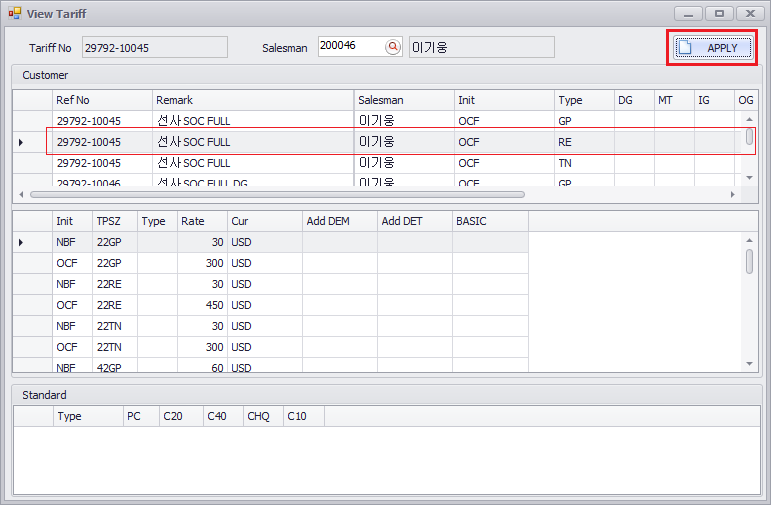
Choose one of Ref No and then click [Apply] button.
Then Tariff No will be applied to TARIFF NO column.
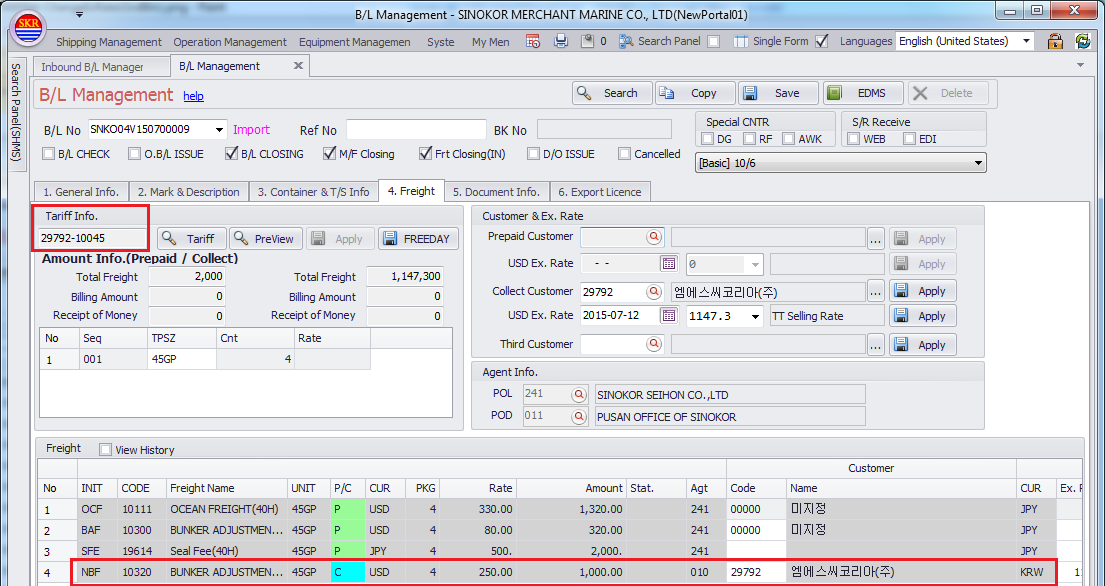
If you click [Save] button, selected tariff will be reflected to all of the inbound collect chrages of specified B/L.
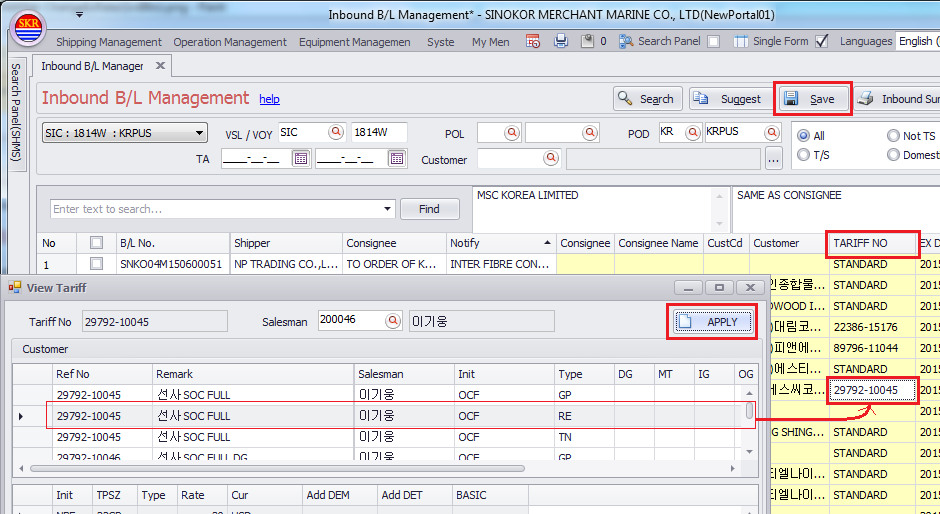
Tariff applied to specified B/L.
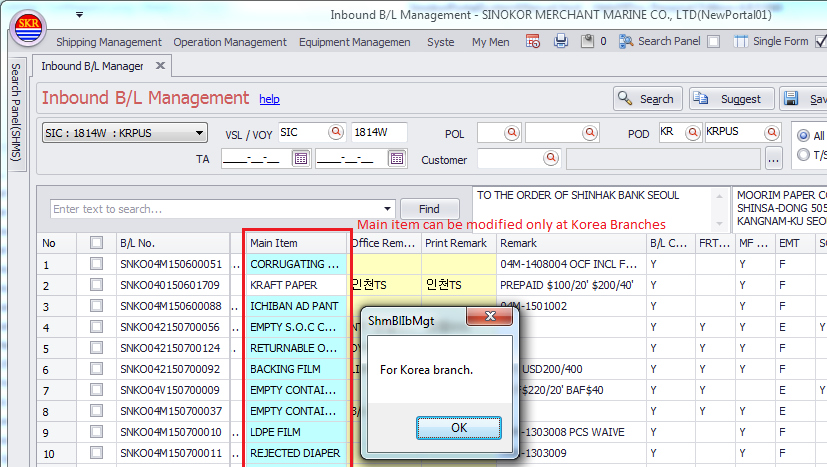
Main Item column
This column can be changaed only at Korea branch. It is to remove unallowed character within 'Main Iteam' when submit EDI to the customs at Korea.
EX Date column
can change exchange date at a time by clicking right button - Apply Column.
Modifying Exchange Rate
If there're somethign wrong with exchange rate, you can change exchange rate.
Click button on the grid under Ex Rate column, then Exchange Rate pops up.
Change ExRate and click [Apply] button. Then new exchange rate will be applied to all of inbound collect charges.

Printing Inbound Summary
Click [Inbound Summary] button.
위수임 정보 선택/입력, Mandator / Nominee ??? (Korea Only)
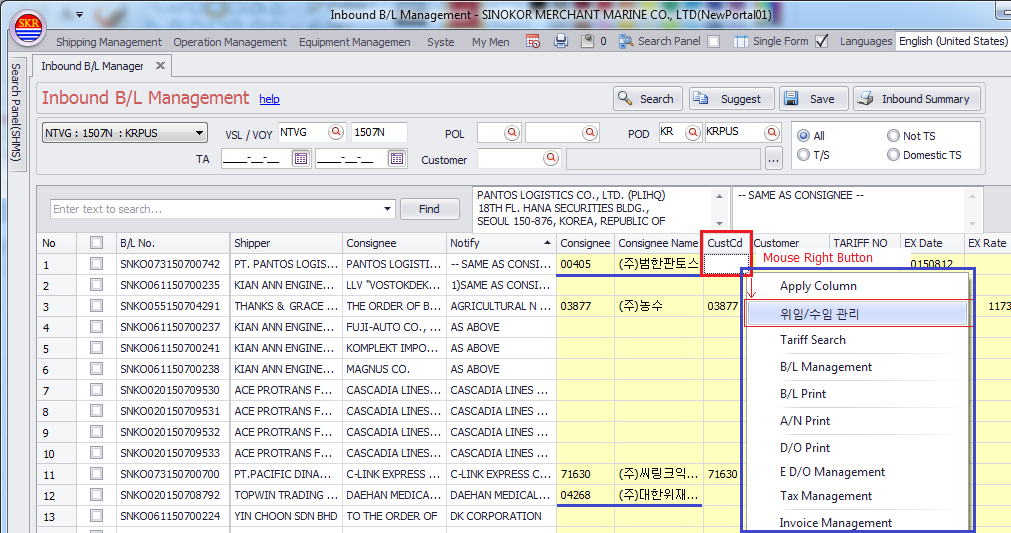
After clicking [Suggest] button, Customer Information (CustCd, Customer) may not filled with whereas Consignee Code/Name is shown.
In this case, click right button on the mouse on the blank column of CustCd, choose nominee/apply or enter CustCd by POD p.i.c.
[수임자 선택 pop-up]

[수임자를 Inbound Customer에 적용한 후의 화면]

Prt Hold column (Korea Only)
This is to prevent the customer from printing out Invoice (temporarily) at sinokor e-service.

-end-