Inbound Closing


SHMCLSINBNDMGT
Inbound Closing
Features
This is for closing Freight, adjusting TA Date, changing Demurrage Start Date and save Settle Agency.
[Freight Closing]
In order to close inbound freight...
Search inbound B/L data from Search Panel or enter Date Term or Vessel/Voyage/POD/POL and then click [Search] button.
Tick up check box of Date column on Freight Closing section and then click Save button.
If you close inbound freight closing, your customer can print out Inovoce at SINOKOR e-Service.
[Adjust TA date]
You can update vessel arrival date (ETA, TA), VFD and VED at once.
Search inbound B/L data from Search Panel or enter Date Term or Vessel/Voyage/POD/POL and then click [Search] button.
Tick up check box of Date column on Adjust TA Date section, input or amend TA date/time and click Save button.
[DEMURRAGE START DATE]
You can adjust Demurrage Start Date. Input start date and then save.
[SETTLE AGENCY]
CNNGB/CNTAO inbound only.
This is for setup settle agency code for inbound cargo.
If you don't setup settle agency, sales is not settled at SKR HQ.
After sales settled at SKR HQ, you cannot change settle agency in this menu.
Error List on the Grid
Error list will be shown on the grid if there're any errors when you close Freight, adjust TA date/time and setup Settle Agency.
Menu
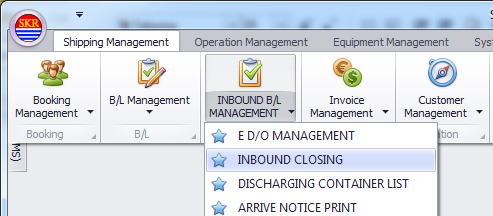
Menu location : Shipping Management --> INBOUND B/L MANAGEMENT --> INBOUND CLOSING
 R
R
Menu screen
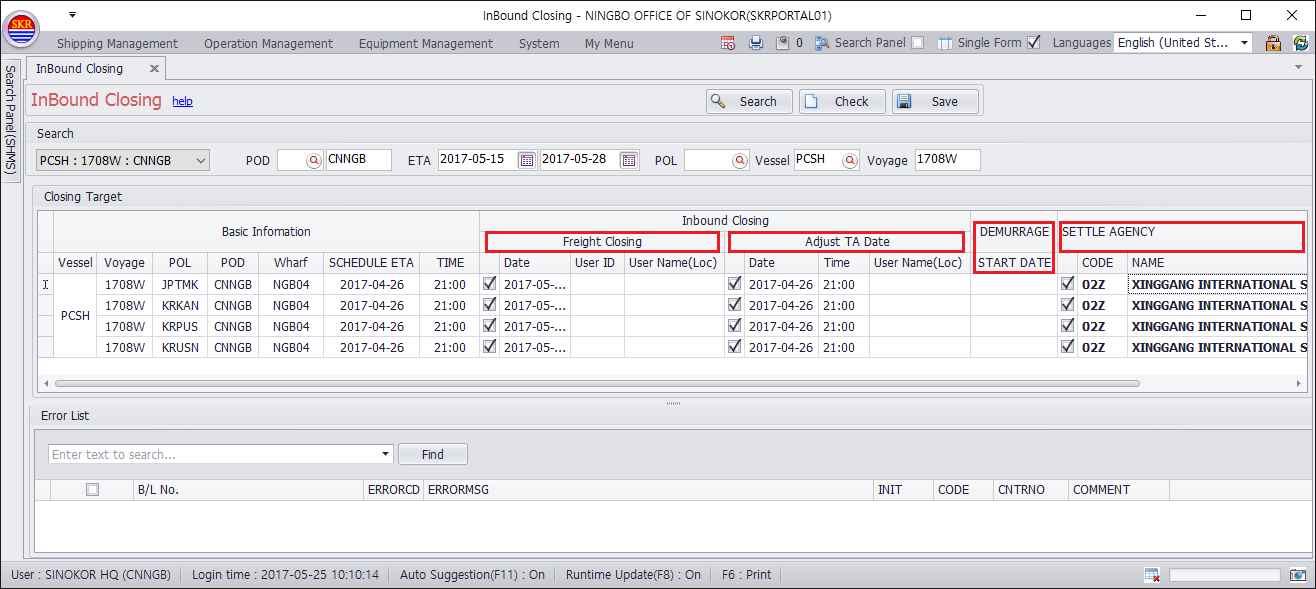
Grid Columns
Item |
Comment |
Type |
|
Vessel |
Vessel code |
|
|
Voyage |
Voyage number |
|
|
POL |
Port of loading port of loading |
|
|
POD |
Port of discharging port of discharging |
|
|
Wharf |
POD wharf code |
|
|
SCHEDULE ETA |
ETA of vessel schedule |
|
|
TIME |
ETA time of vessel schedule |
|
|
Freight Closing/Date |
Closing date, Tickup check box in order to close inbound freight. |
||
Freight Closing/User Id |
Clsoing User Id |
|
|
Freight Closing/User Name(Loc) |
Clsoing User name |
|
|
Adjust TA Date/Date |
Vessel arrival date |
|
|
Adjust TA Date/Time |
Vessel arrival time |
|
|
Adjust TA Date/User Name(Loc) |
User name |
|
|
DEMURRAGE START DATE |
If you want to change Demurrage Start Date, input START DATE and save. |
|
|
SETTLE AGENCY/CODE |
Input Settle Agency 1. Tickup Settle Agency check box. 2. Input or Search/Choose Settle Agency. Input Settle Agency 2. Input Settle Agency 3. on the CODE or NAME column, right click on the mouse -> click Apply. Then inputted settle agency code on the first row will be applied to all the checked box automatically. 4. Save. |
|
|
SETTLE AGENCY/NAME |
Settle agency name will be applied to the grid automatically when you input settle agency code. |
|
|
SETTLE AGENCY/Stl User Name(Loc) |
After save settle agency, save user will be shown on this column. |
|
SETTLE AGENCY (CNNGB/CNTAO inbound only)
Agency code list
PORT |
AGENCY CODE |
AGENCY NAME |
COMMENT |
|
CNTAO |
025 |
CHINA MARINE SHIPPING AGENCY SHANDONG CO., LTD. |
- |
|
02U |
QINGDAO PORT INTERNATIONAL FREIGHT AND LOGISTICS CO., LTD. |
for New Service at CNTAO |
||
024 |
SINOKOR MERCHANT MARINE(CHINA) CO., LTD QINGDAO |
- |
||
CNNGB |
02A |
SINOKOR NINGBO |
- |
|
02A |
SINOAGENCY NINGBO |
- |
||
02Z |
XINGGANG INTERNATIONAL SHIPPING AGENCY |
for New Service at CNNGB |
How to setup SETTLE AGENCY
Search inbound Data on the Search Panel or input VSL/VYG/POD and then click [Search] button.
Tickup "check box" under the SETTLE AGENCY section on the grid.
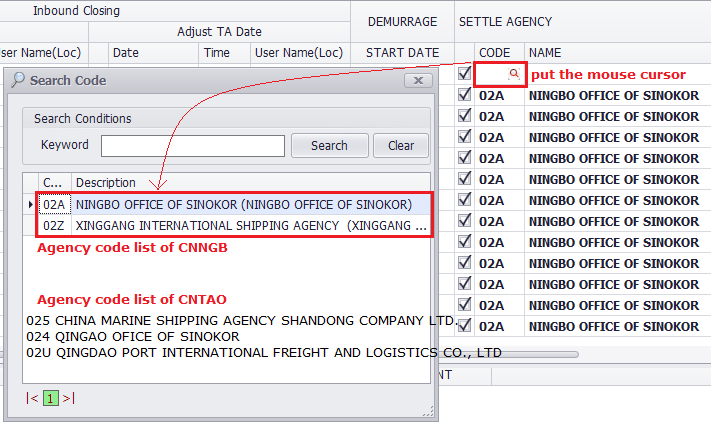
Input or Search SETTLE AGENCY CODE on the CODE column.
[Search Code] popup.
The agency code list are shown automatically when you put the cursor onto the CODE box under SETTLE AGENCY section.
Choose the one of the code list and dbl-click, and then right click on the mouse on the NAME column.
Choose the "Apply Column", then the selected agency code will be applied to the whole checked CODE/NAME column.
Finally, click [Save] button.
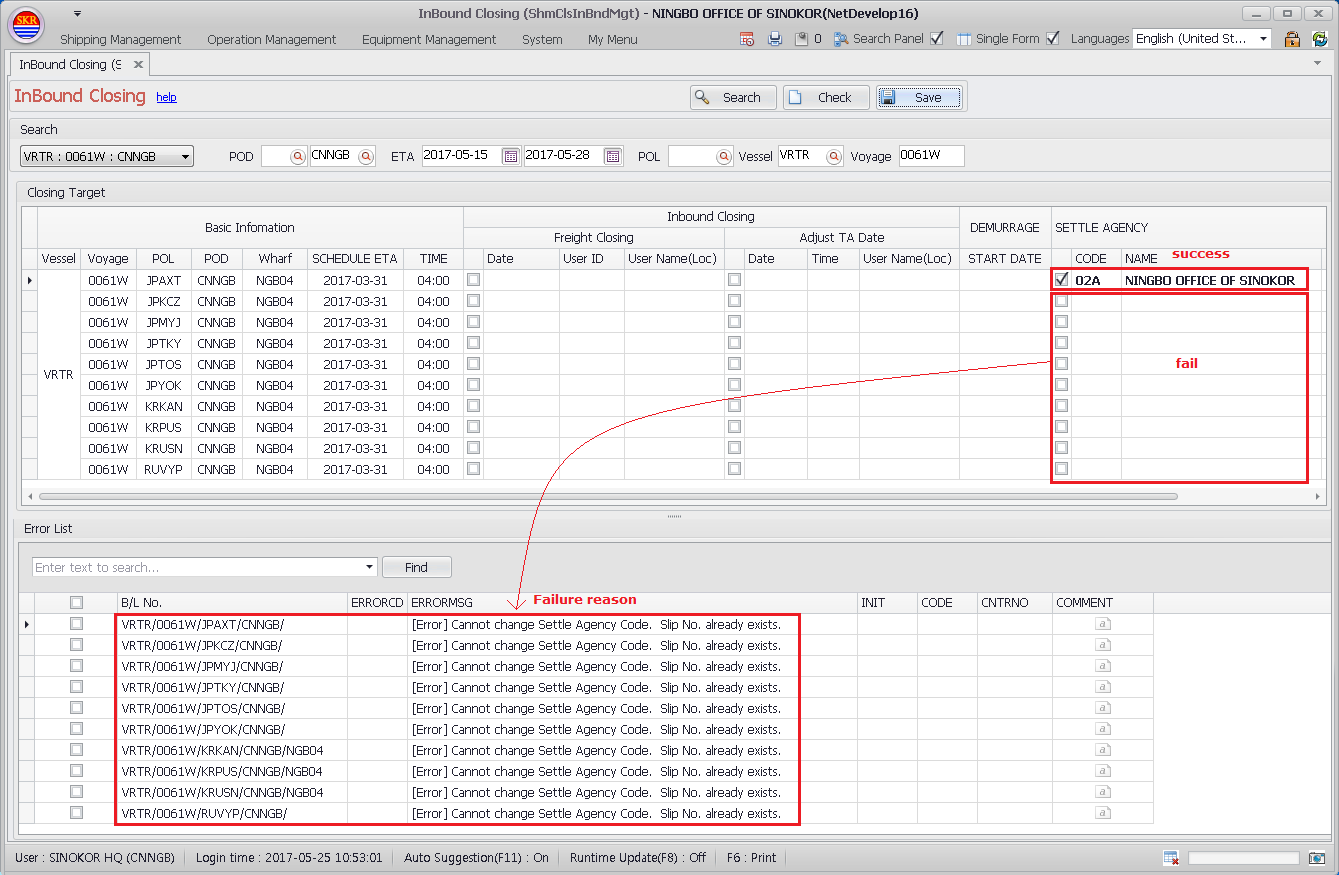
If there's any error, the error list will be shown on the "Error List" grid.
(Right click on the CODE/NAME column then the menu is shown. Choose "Apply Column".)
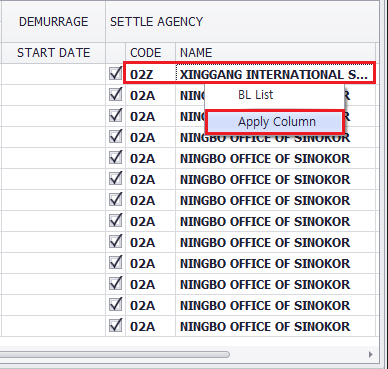
(In this example, "02A/NINGO OFFICE OF SINOKOR" is changed to "02Z/XINGANG INTERNATIONAL SHPPING AGENCY")
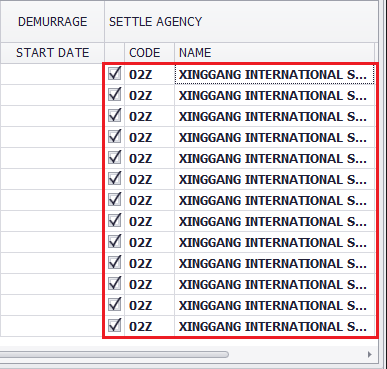
If SETTLE AGENCY is saved successfully, you can see CODE/NAME/User Name on the SETTLE AGENCY section after Save.
If there's and any error, the error will be shown on the "Error List" grid.
- Error : Cannot change settle agency code. Slip No. already exists. - This means, all the data of specified vessel/voy/pol/pod has settled already at SINOKOR HQ. So you can't setup settle agency. '
On the contrary, if you don't setup settle agency in time, all the B/L data will be omitted from the SINOKOR sales.
-end-